The platform now asks for the payment agreed upon in Creating an Order: Step 5.
To apply a discount code to the order, enter the code ID into the open text field provided and click  .
.
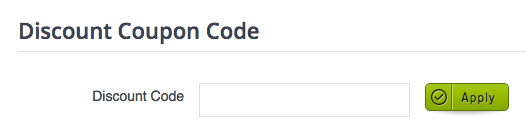
After the discount coupon code is accepted, the order's total cost will decrease based on the code's parameters (e.g. 10% off entire order, $100 off creation services, etc.).
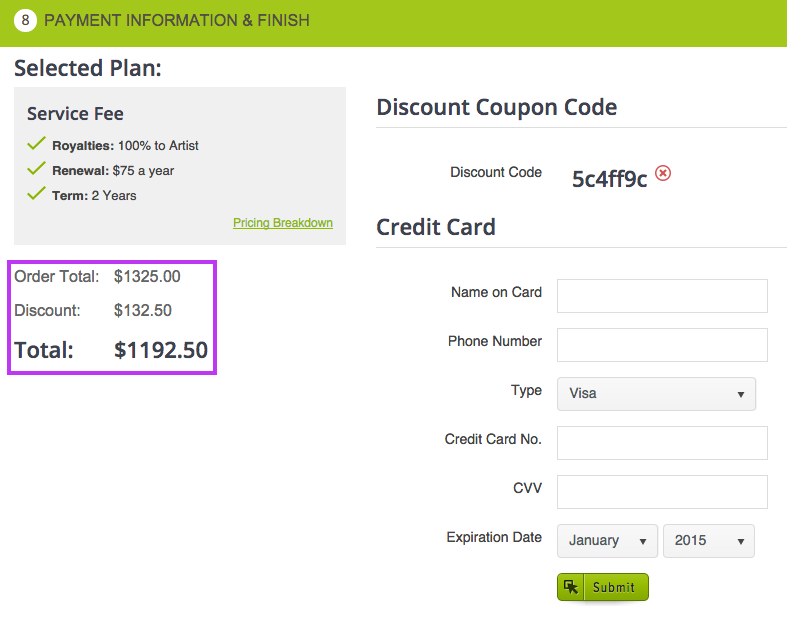
Next, fill in all credit card information.
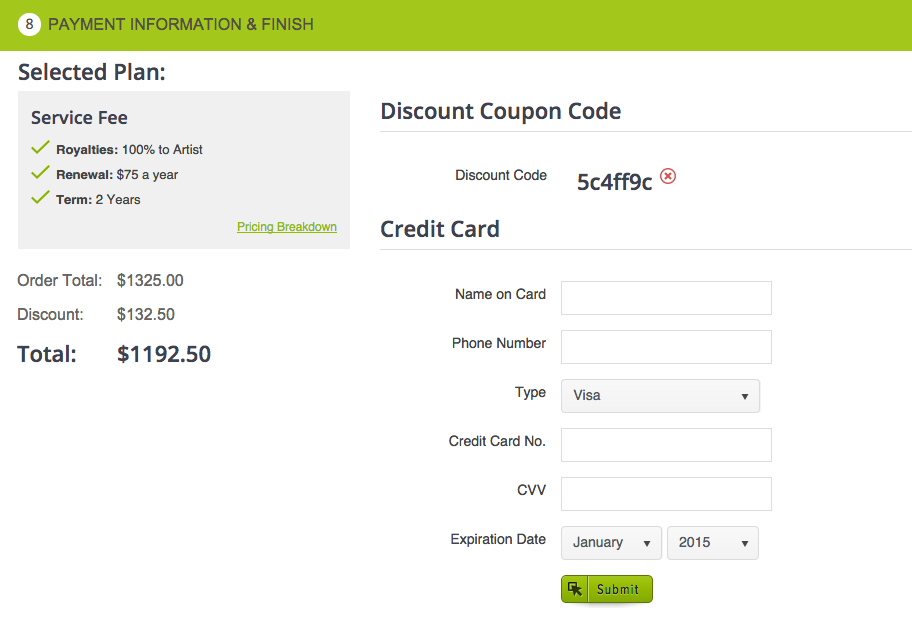
Please Note: Credit card information entered here will be saved for all future orders. When a second order is created, the platform will auto-populate the last-used credit card’s information. The platform will, however, ask to verify the card’s CVV.
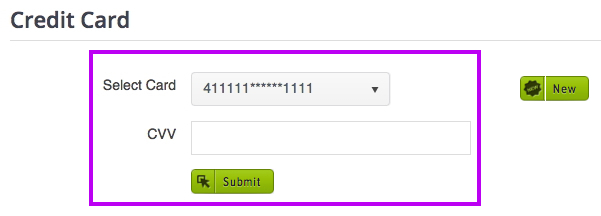
If credit card information has been saved from a previous order, but you would like to use a new credit card for this order, click  .
.

After refreshing, enter the new credit card information for this order.
-----
After creating an order, an email will be sent to the account holder with an order invoice summary.

-----
Congratulations! Your order has been created. This does not mean that the order has been submitted for review and fulfillment. There are still two more steps in the order placement process to complete (see articles Metadata and Files).

This order will now appear on the platform's home page. All sections of the order placement process can now be viewed and accessed from the home page. For more information, click here.